Füge Captions und Untertitel einfach mit KI hinzu.

Unübertroffene Präzision. Ein Workflow, der einfach passt. Perfekt auf deine Marke zugeschnitten.
Los geht's
*Keine Kreditkarte erforderlich. Kostenlose Version verfügbar.
Smiling man with glasses waving in front of blue patterned background with text 'Hey guys, welcome to Riverside'.
Man wearing a black cap and shirt smiling in front of a microphone with text overlay: create a successful business plan.Bearded man wearing glasses and headphones speaking into a microphone with 'Thank you all' text at the bottom.
Person with short dark hair wearing headphones and an orange shirt, speaking into a microphone with a smile, with text overlay saying 'Happy to be here!'
Smiling man with glasses and beard wearing headphones and speaking into a microphone in a recording studio.
Top: Woman with a surprised expression, holding hands near her face; text reads 'How did I get into'. Bottom: Man with glasses and beard speaking into a microphone in an indoor setting.
A man wearing headphones and a woman in a yellow beanie speaking on a split-screen video with the text 'WELCOME TO THE SHOW' at the bottom.
Two people in a split-screen: a woman with a headband and a patterned shawl on top saying 'How did I get into community building?' and a man with glasses speaking into a microphone below.Man wearing a white VaynerSports cap and gray graphic t-shirt sitting in front of shelves with toys and decorations.
Icon of a muted speaker above text stating that 75% of people often watch videos on mute.Split image with two podcast hosts: man wearing headphones and a cap in a recording studio above; woman in a yellow beanie and cozy sweater speaking in front of a microphone below, with text 'Welcome to the show' between them.
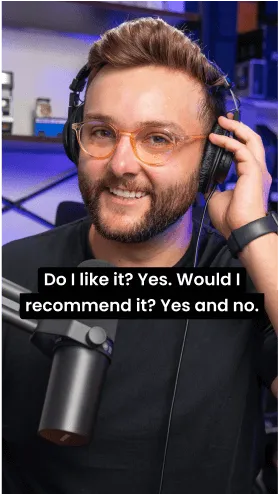
Smiling person wearing headphones sitting at a desk with a keyboard and microphone, with text saying 'Happy to be here!'Smiling man with glasses and a beard wearing headphones and speaking into a microphone with text overlay about liking and recommending something.

Alles an einem Ort.

Spare Zeit bei der Nachbearbeitung. Dein Content ist mit wenigen Klicks bereit.

Transkribiere es.

Mit 99 % Genauigkeit und Unterstützung für über 100 Sprachen – dank modernster KI.

Los geht's
Split-screen with two men smiling; left man wearing headphones and glasses, right man in front of window, text overlay reads "It's literally word for word what I was thinking!"

Gestalte es

Wähle Stil, Schrift und Farbe, damit Deine Untertitel perfekt zu Deiner Marke passen. Entscheide dann, wo sie erscheinen, wie sie ausgerichtet sind und mit welcher Animation sie ins Auge fallen.

Los geht's
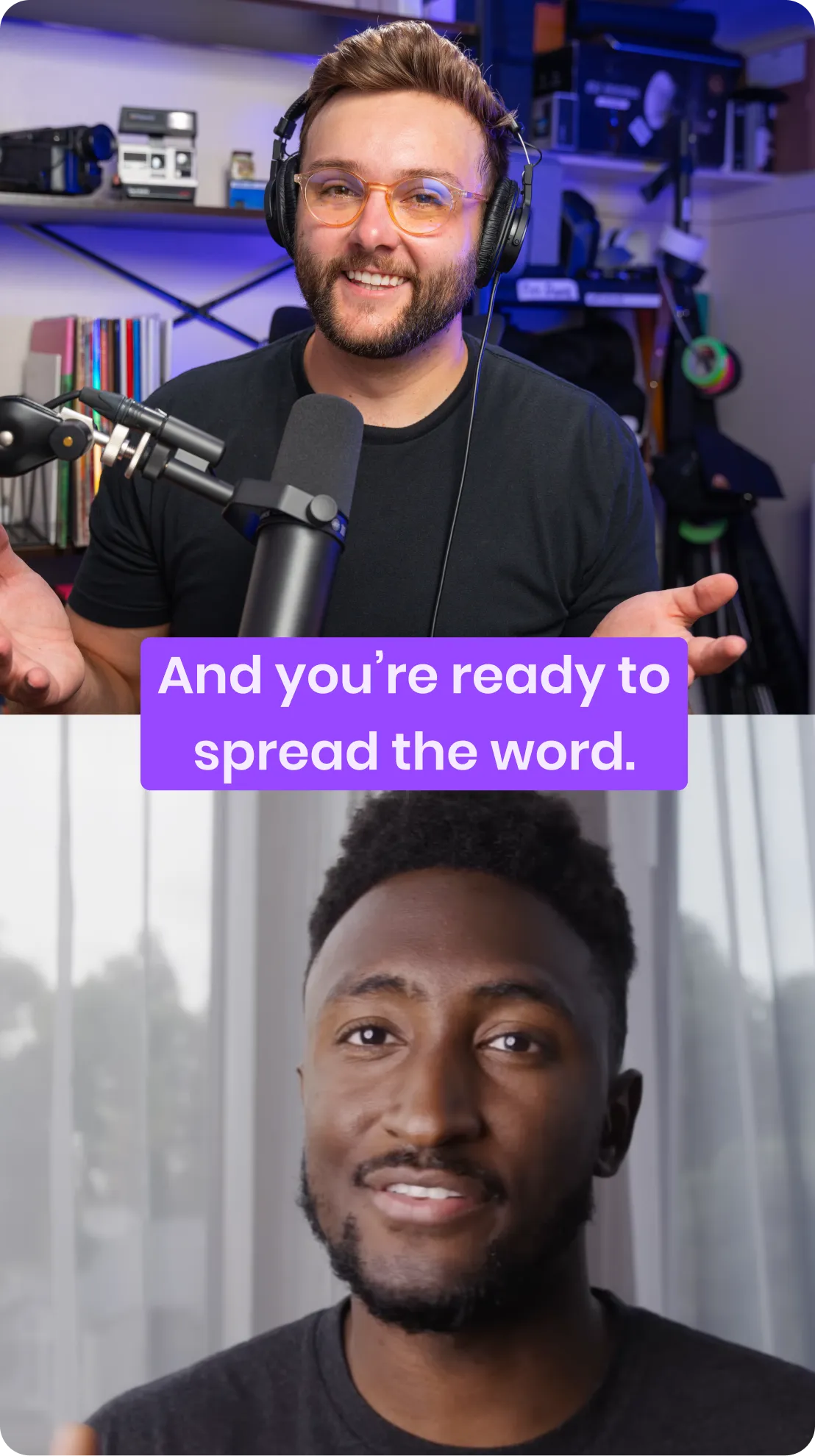
Two men communicating virtually; one wearing headphones with a microphone, the other speaking in front of a window, with text reading 'And you're ready to spread the word.'

Teile es

Mach mehr aus deinem Content – mit nur einem Klick passt du das Layout für Reels, TikTok, Shorts und Co. an.

Los geht's
Two men smiling during a video recording: the top man wearing glasses and headphones speaking into a microphone, the bottom man in front of a window with sheer curtains.Split-screen showing two men smiling; the left man wears glasses and headphones with a microphone, the right man is in front of a window with curtains.

Transkribiere es.

Mit 99 % Genauigkeit und Unterstützung für über 100 Sprachen – dank modernster KI.

Gestalte es

Wähle einen Stil, eine Schriftart und eine Farbe, um deine Untertitel 100 % an deine Marke anzupassen, dann wähle, wie du sie ausrichten und wo du sie auf dem Bildschirm platzieren möchtest.

So geht's:

01
Nimm mit Riverside auf oder lade dein eigenes Video hoch
02
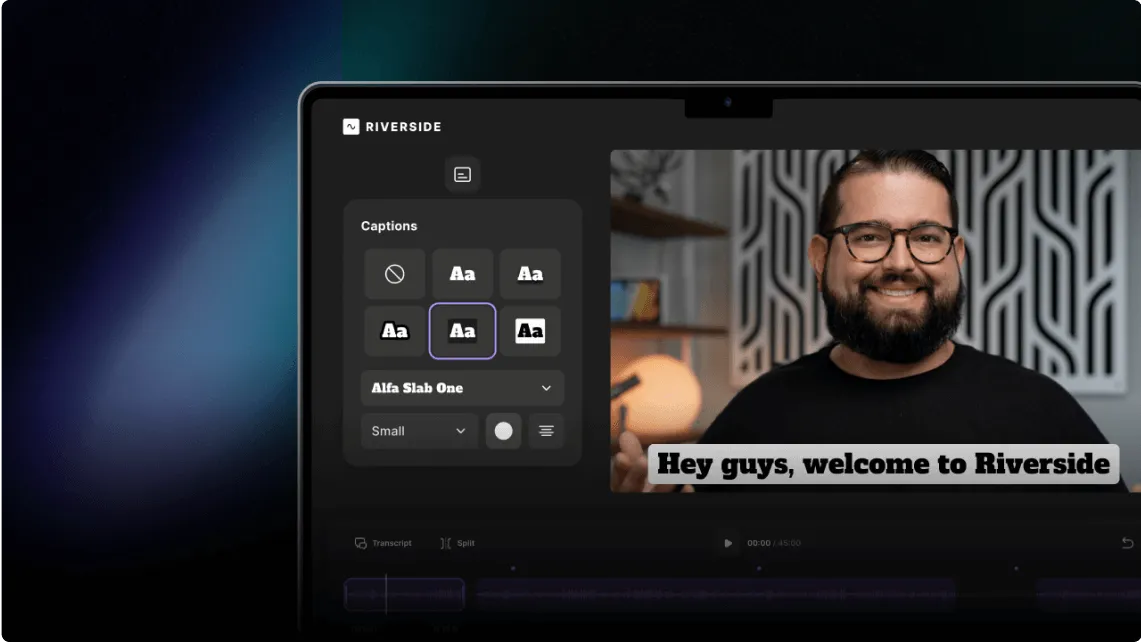
Wähle einen Untertitel-Stil aus, um deine Captions hinzuzufügen
03
Teste verschiedene Schriften, Farben und Designs – bis alles genau so aussieht, wie du es willst
Untertitel
Schritt-für-Schritt-Anleitung
Screen showing a video editing interface with a bearded man smiling and a caption that reads 'Hey guys, welcome to Riverside.'

Frequently Asked Questions

Adding captions or subtitles to your video is highly recommended as it can significantly improve performance and accessibility. However, it’s not necessary to add them.

Captions increase engagement and make your content accessible to viewers who are hard of hearing and people watching with the sound off.

Plus, search engines use closed captions to categorize and rank your content. By including relevant keywords, you can target your audience better.

To add captions or subtitles to a video with Riverside, open your video in the video editor and use the captions tool to generate and style them. Riverside automatically creates a transcript of your video recording.

Here’s how:

  • Step 1: Open your video in the Riverside editor.
  • Step 2: Click the captions icon in the editing toolbar.
  • Step 3: Choose a preset style or customize the font, color, size, alignment, and animation.
  • Step 4: Drag the captions to your preferred position in the video.

You can also download an SRT file from your project dashboard to upload as closed captions on other platforms.

The difference between captions and subtitles is that captions include dialogue and relevant sounds, while subtitles include only spoken dialogue.

Captions improve accessibility for people who are hard of hearing by describing audio cues. Meanwhile, subtitles typically display dialogue without background sound information.

Learn more in our full guide on captions vs. subtitles.

The difference between closed and open captions is that viewers can turn closed captions on or off, while open captions are always on display.

Open captions are embedded in the video file and work well for social media where viewers often watch without sound. Closed captions use a separate transcript file, such as an SRT file, and can improve search visibility because platforms can index the text.

The better option depends on where you publish: use open captions for social feeds and closed captions for platforms that support searchable transcripts.

To help you make an informed decision, read our guide on closed vs. open captions.

To add captions or subtitles to Instagram Reels, YouTube Shorts, and TikTok videos, use each platform’s auto-caption tool or generate captions before uploading.While these in-app tools are easy to use, they may be less accurate for accents, dialects, or non-English languages.

Using a dedicated transcription tool like Riverside, you’ll get more accurate captions without the hassle of doing it separately on every platform you upload to. This ensures you’re consistent throughout all social platforms.

To add an SRT file to a YouTube video, generate and download your SRT transcript, then upload it to YouTube Studio under the subtitles section of your video.

To generate an SRT transcript file using Riverside, just follow these steps:

  1. Record your video as usual, or upload one.
  2. In your recording’s page, go to “Tracks” to find your transcript.
  3. Download your transcript and make sure to select the SRT format.

Learn more about this topic in our beginner’s guide to adding captions and subtitles to YouTube videos.

Das ist alles Teil deines Workflows.

Aufnehmen

Roh, in Studioqualität und auf separaten Spuren.

Bearbeiten

Textbasiertes Bearbeiten und KI-Tools.

Teilen

Mit einem Klick exportieren und veröffentlichen.

Starte jetzt mit Riverside.

Verwandle deine besten Ideen in großartigen Content.
Leg direkt los!