Audio- und Videotranskription mit KI.

Transkribiere Audio & Video in Text – 99 % Genauigkeit.
Über 100 Sprachen. Komplett kostenlos.
Transkribiere Audio & Video in Text –
99 % Genauigkeit.Über 100 Sprachen. Komplett kostenlos.

Jetzt transkribieren
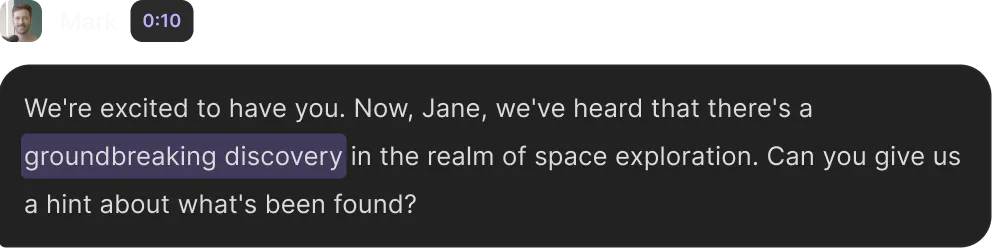
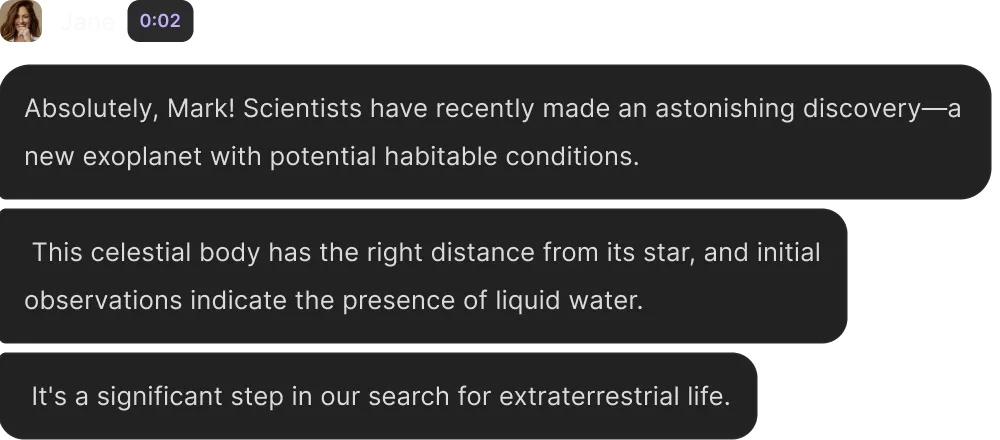
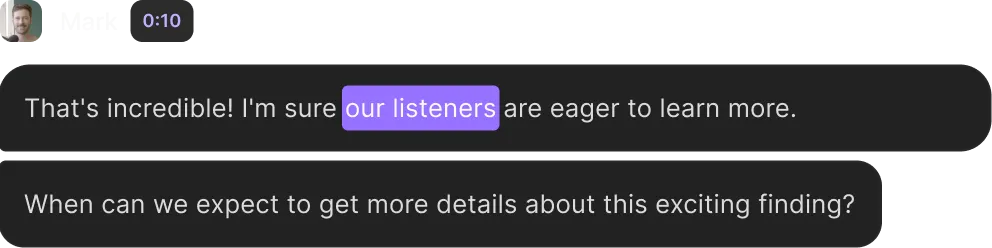
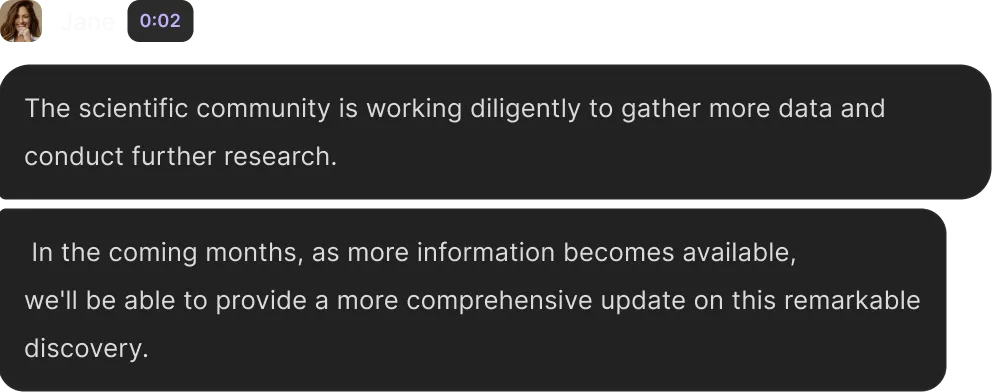
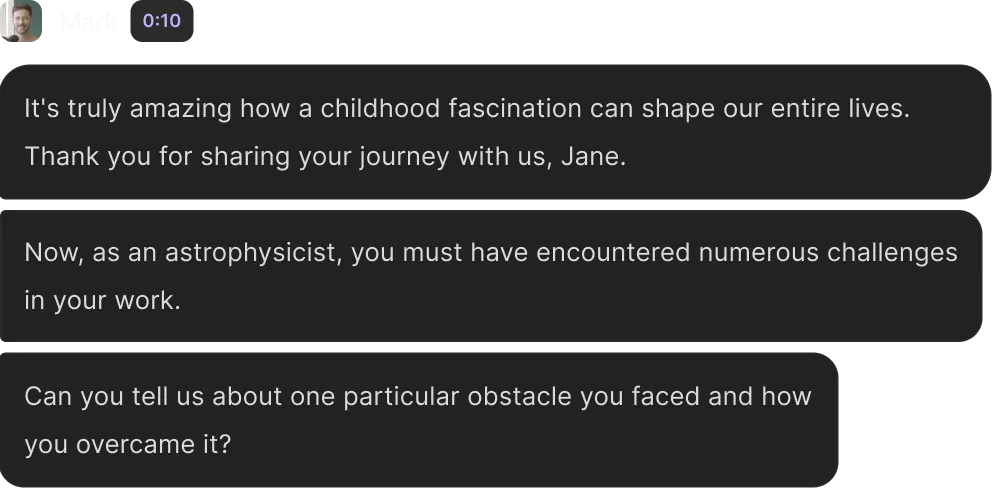
Chat message from a woman thanking Mark and expressing pleasure to share her passion for space with listeners.Chat message with a speaker's headshot and text asking Jane about a groundbreaking discovery in space exploration.Chat message stating scientists recently discovered a new exoplanet with potential habitable conditions, the right distance from its star, presence of liquid water, and its significance for extraterrestrial life search.Screenshot of a chat message saying, "That's incredible! I'm sure our listeners are eager to learn more." followed by, "When can we expect to get more details about this exciting finding?" with a small profile picture and a timestamp of 0:10.Text conversation with a woman sharing that the scientific community is working diligently to gather more data and conduct further research, and promising a more comprehensive update on a remarkable discovery in the coming months.Text conversation where one person thanks Jane for sharing her journey and asks about challenges she faced as an astrophysicist and how she overcame one obstacle.

Wir halten unser Wort.

Nutze unsere KI-Transkription, so oft du willst. Du kannst direkt im Online-Studio aufnehmen oder Dateien hochladen, die Transkription läuft automatisch. Anschließend bearbeitest du das Transkript, fügst Untertitel hinzu, passt alles an oder schneidest Clips – ganz einfach.
Fühle Dich frei, unseren KI-Transkriptor so oft zu nutzen, wie Du möchtest. Oder Du kannst direkt in unserem Online-Studio aufnehmen und Deine Transkriptionen automatisch erstellt bekommen.

Auf den Punkt geschrieben.

Nutze KI, die dein Audio nahezu fehlerfrei in Text verwandelt – Wort für Wort, mit allen Feinheiten. Ist doch mal was falsch? Ein Klick genügt, um es zu korrigieren.
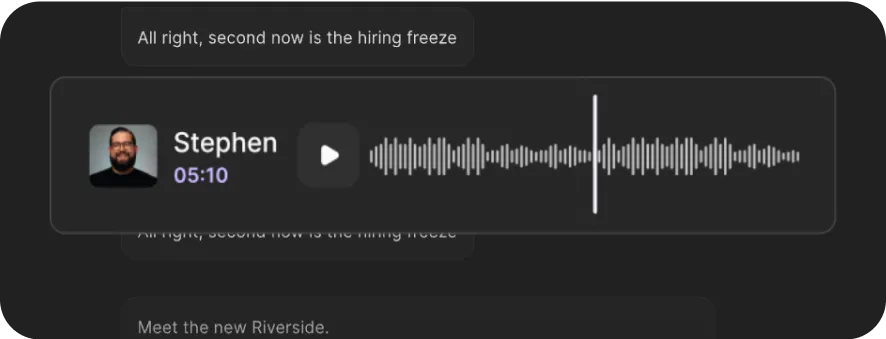
Audio player interface showing a waveform, play button, and a profile photo of a man labeled Stephen with timestamp 05:10.
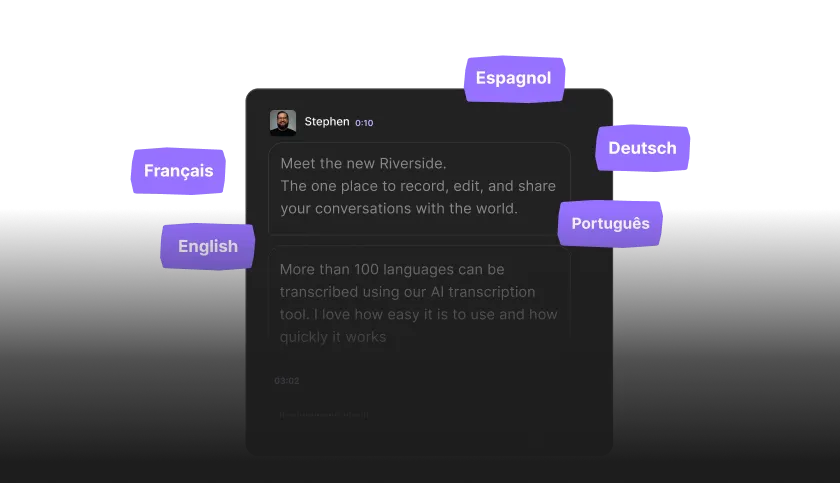
Dark-themed chat interface showing a message from Stephen about Riverside, surrounded by language labels: Français, English, Espagnol, Deutsch, and Português.

Über 100 Sprachen.

Automatische Transkriptionen in über 100 Sprachen und Dialekten, egal, welcher Akzent oder regionale Besonderheit dabei ist.

Schnell und kostenlos.

Die Transkription startet sofort nach dem Aufnehmen oder Hochladen. In allen Pro- und Business-Tarifen inklusive.
Starte jetzt mit Riverside. Von der Idee zum fertigen Content – alles an einem Ort.
Und das ist erst der Anfang von dem, was Du mit Riverside machen kannst.
Los geht's

Mehr als nur Worte.

Mit Riverside nimmst du überall und jederzeit in Spitzenqualität auf und bekommst direkt die Transkription, inklusive Sprechererkennung. Und das ist nur der Anfang.
Nimm in bis zu 4K auf – mit glasklarem Sound, unabhängig von der Internetverbindung bei dir oder deinen Gästen.
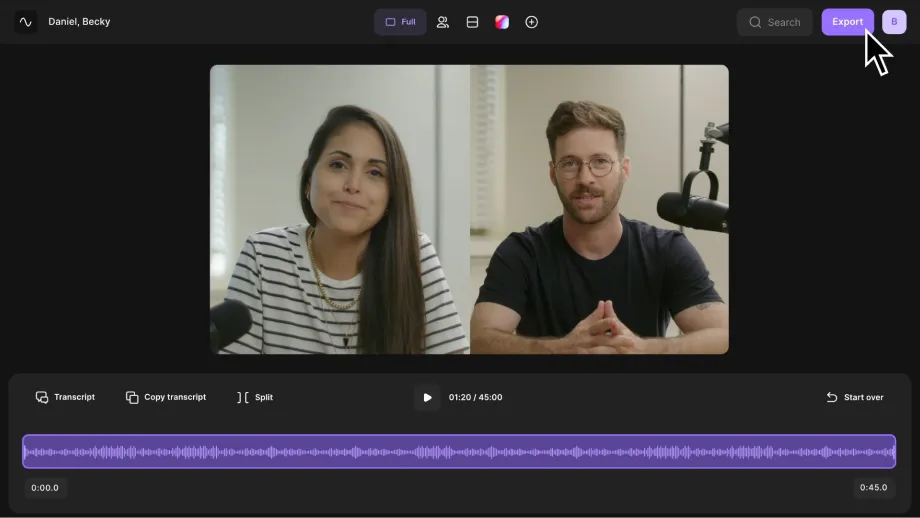
Video call interface showing a woman and a man speaking, with controls and an audio waveform below.

Aufnehmen

Nimm in bis zu 4K auf – mit glasklarem Sound, unabhängig von der Internetverbindung bei dir oder deinen Gästen.

Transkribieren

Nach der Aufnahme startet die KI automatisch und zeigt dir genau, wer was gesagt hat.

Bearbeiten

Bearbeite deine Aufnahme direkt in der Waveform-Darstellung oder im Transkript. Lösche einfach Wörter, Sätze oder ganze Absätze.

Frequently Asked Questions

Riverside's transcription service is up to 99% accurate. It uses advanced speech-recognition technology trained on multilingual data to recognize accents and dialects with near-human precision.

When you use the Riverside recorder, the platform captures high-quality, uncompressed audio, which further improves transcription accuracy.

You can download your transcripts in SRT and TXT formats. These are the two most widely used transcript file types.

  • TXT (Text file): A plain text file that works well for repurposing content into blog posts, show notes, summaries, newsletters, or articles.
  • SRT (SubRip Subtitle file): A timestamped file used for adding closed captions or subtitles to videos. Styling, such as fonts and colors, is applied separately in your video editor.

To download a specific format using the free transcription tool above:

  • Step 1: Upload your video and select your language and content type.
  • Step 2: Let the AI transcribe, and when downloading, select which format you want. If you’re downloading transcripts in Riverside’s platform:
  • Step 3: In the “Tracks” section, you’ll see the option to download a transcript.
  • Step 4: Click download, and choose between a text file or subtitles.

Riverside takes only a few minutes to transcribe a recording. Your transcripts will be ready shortly after your session ends, depending on the file length.

You can begin editing your video immediately while the transcript processes. Manual transcription, by comparison, can take hours.

Learn more in our guide on how to transcribe audio to text.

Riverside offers both free and paid transcription options.

  • Free plan: You can transcribe unlimited audio or video files without signing up by clicking on the “Transcribe now” button right above. Note that if you upload multi-speaker audio or video, all the transcribed text is assigned to just one speaker.
  • Paid plans: Unlimited automatic transcription is included in all paid plans starting at $24/month. Paid plans also unlock Riverside’s full editing suite with speaker detection, text-based editing, audio cleanup, and automatic captions.

Learn more about Riverside plans and pricing.

Riverside supports over 100 languages and dialects, allowing you to accurately transcribe different accents and regional pronunciations. You can select the language of your recording to improve accuracy.

If you’re using the free transcription tool above, just choose your language when uploading. 

If you’re recording inside Riverside, you can set your language in the studio settings:

  • Step 1: Select the Riverside studio for which you want to set the language.Step 2:
  • Step 2: Go to  “Settings” and then select “Studio settings”.Step 3:
  • Step 3: Scroll down to “Language” and select a language from the dropdown menu.

Yes, Riverside allows you to edit transcripts directly inside the video editor. The transcript syncs with your recording, so text edits automatically update your video.

You can also use your transcript to:

  • Search for specific words or phrases.
  • Automatically generate captions.
  • Fix repeated words across the transcript using “Correct everywhere”.
  • Use the chat-based editor to extract quotes or repurpose your transcript into posts, articles, or emails.

Riverside’s speaker detection labels speakers based on separate audio tracks in your recording. Each participant recorded on a separate track is labeled separately in the transcript.

If multiple people use one microphone or you upload a file with a single mixed track, the transcript will not separate speakers. Speaker detection works best when each participant records on their own track.

Starte jetzt mit Riverside.

Los geht's
KI-Transkriptionen
von Riverside

Eine Datei ablegen, um

zu transkribieren.

Bevor wir anfangen...

intro special2.mp4
intro special2.mp4
0%
Language: English
What would you like to transcribe:
Podcast
Interview
Webinar
Video content
Other
What will you use the transcription for?
Social post
Captions
Key insights
Educational content
Other

Fertig!

Deine Transkripte sind bereit, stelle sicher, dass Du sie herunterlädst, bevor Du gehst!
Transkribiere eine andere Datei
Black capital letter L on a white background.

Fertig!

Deine Transkripte sind bereit, stelle sicher, dass Du sie herunterlädst, bevor Du gehst!
Bitte warten...
Wir arbeiten daran! Die Transkriptionszeiten können je nach Dateigröße, Inhaltslänge und wie beschäftigt unsere Server sind variieren. Danke für Deine Geduld!
Was möchtest Du transkribieren:
intro special2.mp4
intro special2.mp4
In Zwischenablage kopieren
Kopieren
Riverside transkribiert... 0%
Die Transkriptionszeiten können je nach Dateigröße, Länge des Inhalts und wie beschäftigt unsere Server sind, variieren.
Entdecke weitere Funktionen zum Transkribieren, Aufnehmen und Bearbeiten mit Riverside
Audio player with waveform, featuring a profile photo of a man named Stephen and a timestamp of 5 minutes and 10 seconds, on a dark background.
Transkribiere, nimm auf und bearbeite Dein Audio oder Video nahtlos mit Riverside
Beginn sofort mit der Transkription, nachdem Du mit dem Aufnehmen oder Hochladen fertig bist, damit Du nicht lange warten musst
Nimm in bis zu 4K-Video und 48 kHz Audio auf
Füge innerhalb von Sekunden Sprecherbezeichnungen mit unserem KI-gestützten Speaker Detective hinzu.
Transkribiere, schneide und bearbeite Dein Video in Sekunden
Teste Riverside kostenlos
*Ein neuer Tab wird geöffnet, ohne die Transkription zu unterbrechen
Nimm Deinen nächsten Podcast oder Video mit Riverside auf.
Dateityp nicht unterstützt. Wir unterstützen momentan nur MP3- und WAV-Dateien.
Super genaue Transkriptionen in über 100 Sprachen.
Angetrieben durch die neueste KI-Technologie.
Unterstützt MP3, WAV, MP4 und MOV.
Unbegrenzte Transkriptionen kostenlos. Keine Anmeldung erforderlich.
White digital audio waveform on a black background with varying amplitude and frequency.
Lass es fallen!

Bist Du sicher?

Stelle sicher, dass Du Deine Transkripte heruntergeladen hast, bevor Du ein neues beginnst.
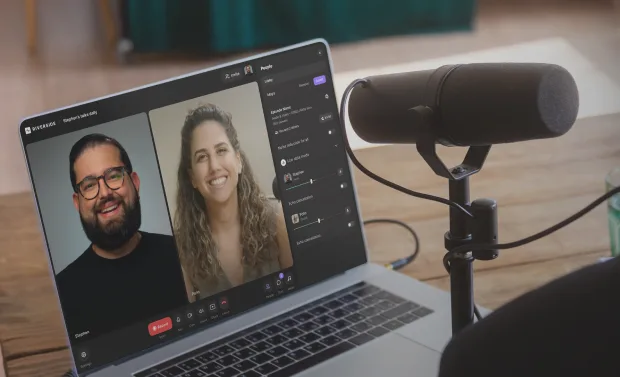
Laptop screen showing a video call with a smiling man and woman, and a microphone on a wooden table nearby.

Transkribiere, nimm auf, bearbeite Deinen Podcast nahtlos mit Riverside

Beginn sofort mit der Transkription, nachdem Du mit dem Aufnehmen oder Hochladen fertig bist, damit Du nicht lange warten musst
Nimm in bis zu 4K-Video und 48 kHz Audio auf
Transkribiere, schneide und bearbeite Deinen Podcast in Sekunden
*Keine Kreditkarte erforderlich